SSH Keys Management
SSH keys provide secure, password-free authentication to access your pods. Manage your SSH keys from the Kloud Team dashboard to connect to your deployments securely.
Overview
SSH (Secure Shell) keys are cryptographic keys used to authenticate your identity when connecting to pods. Instead of using passwords, SSH keys provide a more secure and convenient way to access your infrastructure.
Benefits of SSH Keys:
- Enhanced Security – Cryptographically secure authentication
- No Password Required – Seamless access without typing passwords
- Easy Management – Add, view, and remove keys from the dashboard
- Multiple Keys – Manage different keys for different team members or devices
Accessing SSH Keys
Navigate to Platform > Pods > SSH Keys in the Kloud Team dashboard to manage your SSH keys.
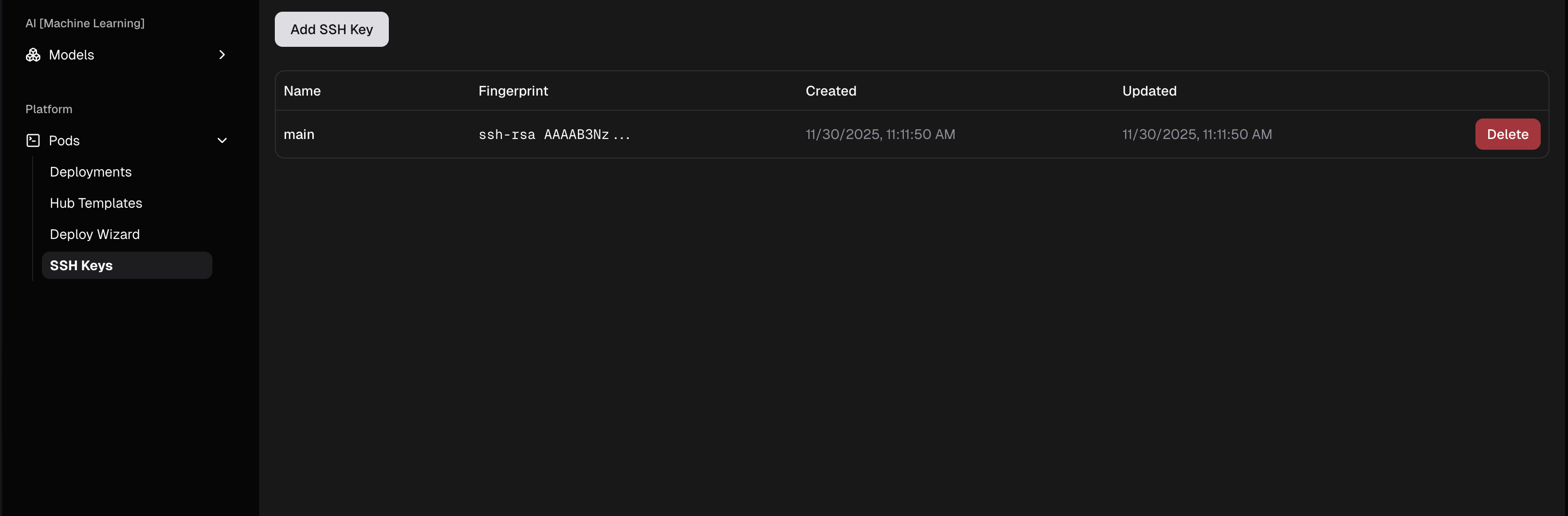
The SSH Keys dashboard allows you to:
- View all your registered SSH keys
- See key fingerprints and metadata (name, created date, updated date)
- Add new SSH keys with the Add SSH Key button
- Delete existing keys when they're no longer needed
Adding an SSH Key
Generate an SSH Key (if needed)
If you don't have an SSH key yet, generate one on your local machine:
Linux/macOS:
# Generate a new SSH key pair
ssh-keygen -t rsa -b 4096 -C "your_email@example.com"

# Press Enter to accept the default file location
# Enter a passphrase (optional but recommended)

# View your public key
cat ~/.ssh/id_rsa.pub
Windows (PowerShell):
# Generate a new SSH key pair
ssh-keygen -t rsa -b 4096 -C "your_email@example.com"

# View your public key
type $env:USERPROFILE\.ssh\id_rsa.pub
This creates two files:
id_rsa– Your private key (keep this secret!)id_rsa.pub– Your public key (this is what you'll add to Kloud Team)
Copy Your Public Key
Copy the entire contents of your public key file:
# Linux/macOS
cat ~/.ssh/id_rsa.pub | pbcopy

# Linux (with xclip)
cat ~/.ssh/id_rsa.pub | xclip -selection clipboard

# Windows
type $env:USERPROFILE\.ssh\id_rsa.pub | clip
Your public key should look like:
ssh-rsa AAAAB3NzaC1yc2EAAAADAQABAAACAQDZm... your_email@example.com
Important:
Never share your private key (id_rsa). Only share the public key (id_rsa.pub).
Add Key to Kloud Team
In the SSH Keys dashboard:
- Click the Add SSH Key button
- Enter a descriptive name for your key (e.g., "main", "laptop", "work-computer")
- Paste your public key into the key field
- Click Save or Add
Your key will now appear in the SSH Keys table with:
- The name you provided
- The key fingerprint
- Creation timestamp
- Delete option
Pod Connect
Once your SSH key is added, you can connect to your pods:
Connect to a Pod
Use SSH to connect to your running pods:
# Connect to a pod using your pod ID
ssh -p 31747 {pod_id}@ssh.kloud.team

# Example with a specific pod ID
ssh -p 31747 1988698323669749760@ssh.kloud.team
Replace {pod_id} with your actual pod ID from the Kloud Team dashboard. The connection will authenticate automatically using your SSH key.
Execute Commands
Once connected, you can execute commands on your pod:
# Check pod status
ps aux

# View logs
tail -f /var/log/app.log

# Install packages
apt-get update && apt-get install -y htop

# Run your application
python app.py
Transfer Files
Use SCP or SFTP to transfer files to your pod:
# Copy a file to the pod
scp -P 31747 local-file.txt {pod_id}@ssh.kloud.team:/path/to/destination/

# Copy a directory to the pod
scp -P 31747 -r local-directory {pod_id}@ssh.kloud.team:/path/to/destination/

# Copy from pod to local
scp -P 31747 {pod_id}@ssh.kloud.team:/path/to/file.txt ./local-directory/
Replace {pod_id} with your actual pod ID.
Managing Multiple SSH Keys
You can add multiple SSH keys for different devices or team members:
Adding Keys for Different Devices
# Work laptop
Name: work-laptop
Key: ssh-rsa AAAAB3NzaC1... work@company.com

# Personal computer
Name: personal-pc
Key: ssh-rsa AAAAB3NzaC1... personal@email.com

# CI/CD pipeline
Name: github-actions
Key: ssh-rsa AAAAB3NzaC1... ci@github.com
Removing SSH Keys
To revoke access or remove an old key:
Locate the Key
Find the key you want to remove in the SSH Keys table.
Delete the Key
Click the Delete button next to the key you want to remove.
Confirm the deletion when prompted.
Verify Removal
The key will be immediately removed from your account. Any connections using that key will no longer authenticate.
Security Tip:
Remove SSH keys that are no longer needed, especially if:
- The device is lost or stolen
- An employee has left the team
- The key was temporary (e.g., for a contractor)
- You suspect the private key may have been compromised
Security Best Practices
Protecting Your Private Key
Keep It Secret
Never share your private key (id_rsa) with anyone or store it in:
- Public repositories
- Cloud storage
- Email or messaging apps
- Unencrypted backups
Use a Passphrase
Always protect your private key with a strong passphrase:
# When generating a key, enter a passphrase
ssh-keygen -t rsa -b 4096 -C "your_email@example.com"
# Enter passphrase: ********
Set Proper Permissions
Ensure your SSH key files have restrictive permissions:
# Set permissions on private key
chmod 600 ~/.ssh/id_rsa

# Set permissions on public key
chmod 644 ~/.ssh/id_rsa.pub

# Set permissions on SSH directory
chmod 700 ~/.ssh
Troubleshooting
Connection Refused
If you can't connect to a pod:
# Check if your key is being used (with verbose output)
ssh -v -p 31747 {pod_id}@ssh.kloud.team

# Verify your SSH agent is running
eval "$(ssh-agent -s)"
ssh-add ~/.ssh/id_rsa

# Check the key fingerprint matches
ssh-keygen -lf ~/.ssh/id_rsa.pub
Replace {pod_id} with your actual pod ID.
Permission Denied
If you get "Permission denied (publickey)":
- Verify the key is added to Kloud Team – Check the SSH Keys dashboard
- Check key permissions – Run
chmod 600 ~/.ssh/id_rsa - Confirm correct pod ID – Ensure you're using your correct pod ID as the username
- Try adding key to agent – Run
ssh-add ~/.ssh/id_rsa
Wrong Key Being Used
If you have multiple keys and the wrong one is being used:
# Specify which key to use
ssh -i ~/.ssh/specific_key -p 31747 {pod_id}@ssh.kloud.team

# Or configure SSH config file
nano ~/.ssh/config
Replace {pod_id} with your actual pod ID.
You can also configure your ~/.ssh/config for easier connections:
Host ssh.kloud.team
    IdentityFile ~/.ssh/id_rsa
    Port 31747
Port Forwarding Limitations
Port Forwarding Disabled:
Port forwarding is currently disabled for SSH pod connections. You cannot use SSH port forwarding features (local, remote, or dynamic forwarding) when connecting to your pods.
Next Steps
Deployments
Learn how to create and deploy pods with SSH access.
Security
Secure your pods and manage access controls.
Need Help?
Having trouble with SSH keys?
- Check the Getting Started guide
- Review Pod Creation documentation
- Contact Support